Amazon search terms optimization means turning real customer search data into smarter decisions across your ads and listings.
By scaling high-converting search terms, cutting wasted spend with negative keywords, and aligning your listing with buyer intent, you can reduce ACoS, improve ROAS, and consistently grow profitable traffic.
Tools like BQool AI Advertising can help simplify this process by surfacing high-performing keywords and reducing manual analysis.
Overview
- What is Amazon Search Terms Optimization?
- How to Access and Understand Amazon Search Term Reports
- How to Optimize Search Terms in Your Campaigns in 3 Steps
- What are the different Keyword Targeting Types?
- How to Use Negative Keywords to Reduce Ad Spend
- How to Use Search Terms to Optimize Your Product Listing
- Simplify Search Term Optimization with BQool’s Auto Harvesting
What is Amazon Search Terms Optimization?
Amazon search term optimization is simply the process of improving your chances of showing up when Amazon shoppers type in specific words related to your listing. This is done by using data that shows exactly what customers search for and applying it to your ad campaigns on Amazon.
Search term reports provide one of the most valuable datasets available to sellers because they reveal real queries that triggered your ads and how those queries performed in terms of clicks, conversions, and cost.
How are search terms related to Amazon Ads?
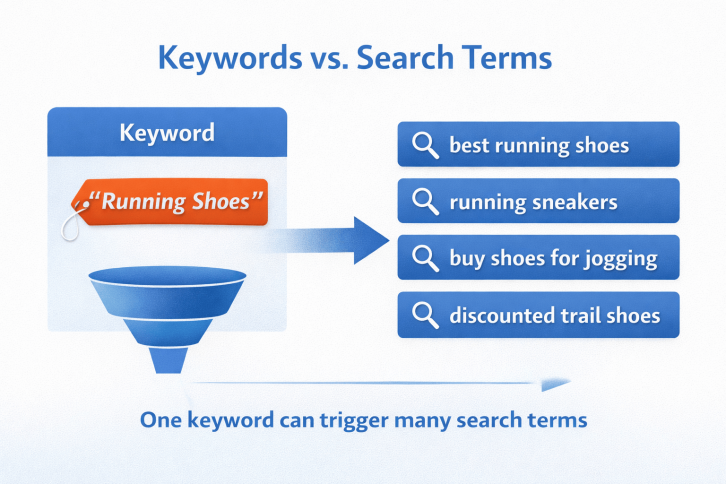
Amazon search terms are the terms that cause your ads to show. This is done through a process called keyword matching, where Amazon uses various types of keyword match types in the right context to determine when your ad appears.
A single keyword can trigger many variations of search terms depending on match type (broad, phrase, exact), listing relevance, and historical performance. We dive into more detail on keyword matching later.
How do search terms affect your ACoS, ROAS, and Conversion Rates?
Search term performance directly affects ad campaigns efficiency, which can be monitored through the following metrics:
- ACoS (Advertising Cost of Sale): Poorly matched queries increase spend without sales, which in turn increases ACoS.
- ROAS (Return on Ad Spend): When you target search terms with higher conversion rates, you improve your revenue per dollar of ad spend.
- Conversion Rate: The more relevant your listing is to a customer’s search query, the higher your chances of increasing conversions, as more customers will purchase your product when you target the right search terms.
How to Access and Understand Amazon Search Term Reports
Where can I find search term reports in Seller Central?
Before proceeding, please make sure you already have an account on Amazon Seller Central, ideally one that is running Sponsored Ads (Sponsored Products, Brands, Display, or TV).
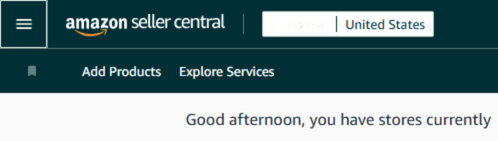
Navigate to your Seller Central homepage and follow the steps below. You can access this either from Seller Central or the Amazon Ads Console.
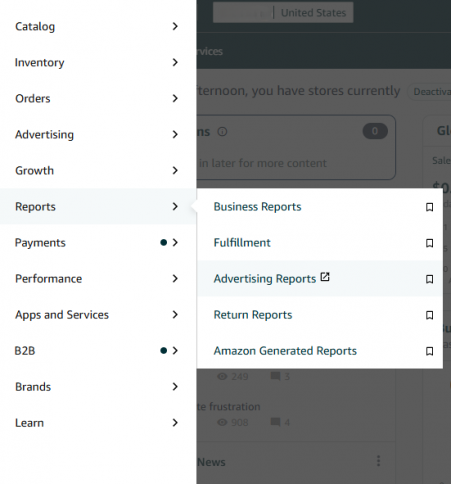
- Seller Central → Reports → Advertising Reports (You will be directed to Amazon Ads Console)
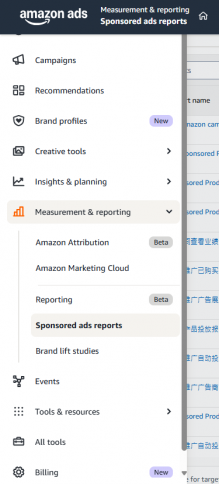
- Amazon Ads Console → Measurement & Reporting → Sponsored ads reports → Create Report → Configure report type to “Search Term”
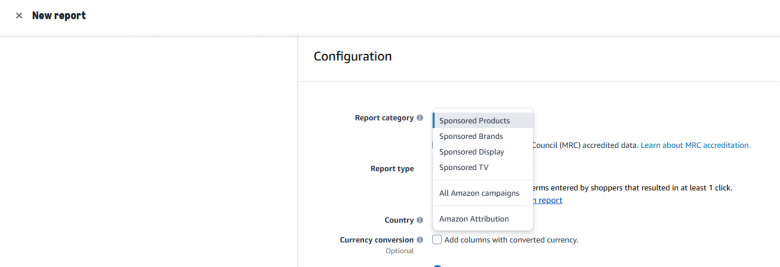
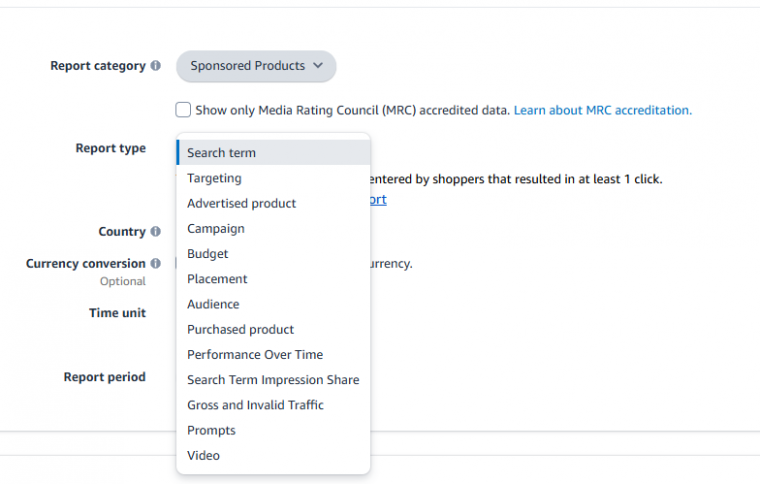
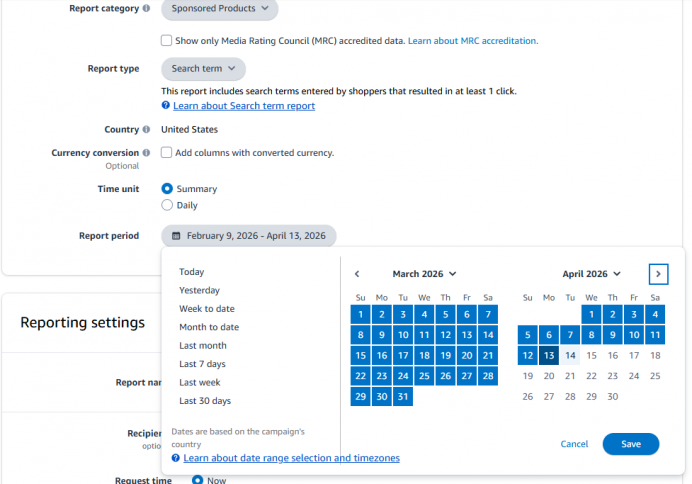
Once you have configured the report category and type, you’ll need to specify the time frame.
- If your sales velocity is high, it is recommended to choose one month of data for the most up-to-date insights.
- If your sales velocity is lower, select the maximum range (60 days).
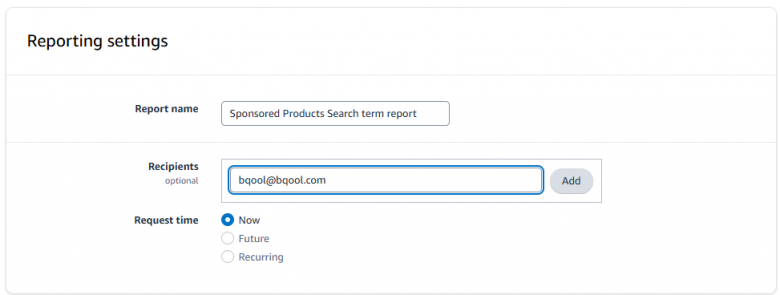
Next, enter the email address where you want to receive the report.
Then click the “Run report” button in the top right corner and wait for it to be sent or download it once available.

Whats the difference between Search Terms and Backend Keywords?
People often get confused because Amazon uses the term ‘Search Terms’ for backend keywords in Seller Central, while the same term is also used to describe what customers actually type into the search bar.
- Search terms: Customer’s search queries
- Backend keywords: Hidden inputs used to help indexing
The main difference is that search terms are the phrases shoppers actually use when browsing Amazon, either typed into the search bar or asked through Amazon Rufus.
Backend keywords are the terms you assign to your listings based on what you think customers might search for. These are not visible to customers but are used by Amazon to determine when to show your listings.
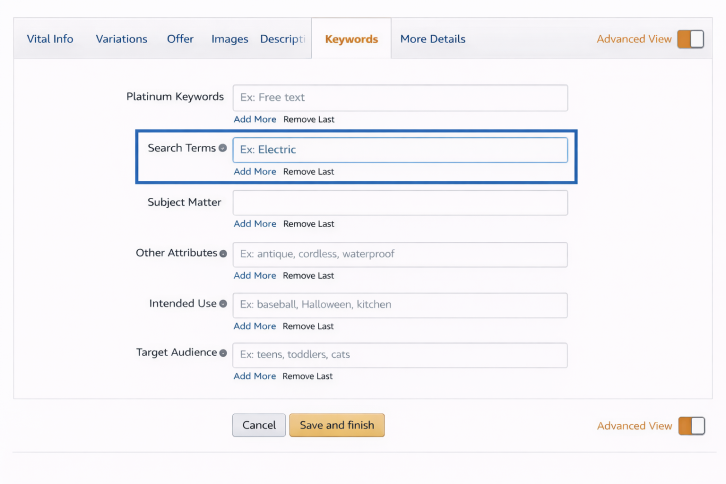
How to Optimize Backend Keywords
- Include synonyms and alternate spellings
- Avoid duplicating keywords already in visible listing content
- Focus on relevance over volume
- Make full use of the 249 bytes (not characters) allowed
What are the key metrics found in Amazon Search Term Reports?
When you download a report, you’ll see the following metrics:
|
Metric |
Definition |
What should I do with this info? |
|
Customer Search Term |
The exact phrase a shopper typed into Amazon that triggered your ad |
Identify high-performing terms to scale and irrelevant ones to negate |
|
7 Day Total Sales |
Total revenue generated from this search term within 7 days of a click |
Increase bids and budget on terms generating strong sales |
|
Spend |
Total advertising cost spent on this search term |
Reduce or pause terms with high spend and low or no sales |
|
ACoS (Advertising Cost of Sales) |
Percentage of sales spent on ads (Spend ÷ Sales) |
Scale terms with low ACoS and optimize or cut high ACoS terms |
|
7 Day Conversion Rate |
Percentage of clicks that resulted in a purchase |
Improve listings or pause keywords with low conversion rates |
|
Clicks |
Number of times shoppers clicked your ad |
Evaluate if traffic is meaningful; high clicks with no sales signals an issue |
|
Impressions |
Number of times your ad was shown |
Increase bids for low-impression high performers or review relevance if visibility is low |
|
CTR (Click-Through Rate) |
Percentage of impressions that resulted in clicks |
Improve main image or title if CTR is low; refine targeting if needed |
|
CPC (Cost Per Click) |
Average cost paid per click |
Lower bids or refine targeting if CPC is too high without returns |
|
7 Day Total Orders (#) |
Number of orders generated from the search term |
Prioritize and scale terms that consistently generate orders |
By analyzing these metrics, sellers can scale profitable terms, cut wasted spend, and improve relevance.
However, the report has limitations:
- It does not include search volume data (only available via Search Query Performance for Brand Registered sellers)
- It only shows queries that triggered ads, not the full keyword universe
Because of this, many sellers supplement their analysis with keyword research tools, competitive insights, and external data.
How to Optimize Search Terms in Your Campaigns in 3 Steps
Step 1: Classify Performance
Use the table below to decide whether to target or remove a search term. The table is based on ACoS and conversion rate.
|
Performance |
High Conversion Rate |
Low Conversion Rate |
|
Low ACoS (Efficient Spend) |
Scale |
Increase bids, move to exact match, isolate in dedicated campaigns |
|
Improve Listing |
Traffic is relevant, but your listing may not be converting |
High ACoS (Inefficient Spend) |
|
Optimize |
Reduce bids, refine targeting, test match types |
Negate or Pause |
|
High spend with low returns, eliminate wasted budget. |
|
|
Apply the Search Term Isolation strategy for high-performing terms
This means taking well-performing search terms and placing them into their own campaigns. This allows better budget control, clearer performance tracking, and more confident scaling.
Step 2: Diagnose the Root Cause
For weak-performing keywords, use the table below to identify the issue.
|
Performance |
What It Means |
What To Do |
|
High impressions + low clicks |
Low relevance or weak creative |
Improve main image, title, or targeting |
|
High clicks + low conversions |
Listing mismatch |
Optimize listing content (images, copy, price) |
|
High spend + no sales |
Wasted budget |
Add as negative keyword or pause |
Step 3: Validate Relevance & Intent
Before making decisions, ensure the search term aligns with your product and strategy.
Some questions to ask yourself:
- Does the query match the product’s core use case?
- Does the listing clearly address this intent?
- Does it convert consistently over time?
If your answers to all three questions are no, it’s time to revisit your search terms and see whether they align with your strategy.
Aligning with your overall goals and strategy:
|
Keyword Intent/Type |
Characteristics |
Strategy |
|
Informational |
Research-focused, low conversion |
Lower bids or use for discovery only |
|
Transactional |
Purchase-ready |
Prioritize and scale |
|
Broad |
High reach, low precision |
Use for testing and data collection |
|
Long-tail |
Lower volume, higher conversion |
Focus on profitability and scaling |
To determine keyword intent and type, start by thinking about what the shopper is trying to do and how it fits your goal.
Informational keywords (research intent):
Example: “best running shoes for beginners”
This search shows the shopper is still comparing options and learning. They are not ready to buy yet, so it’s useful for discovery and should be targeted with lower bids.
Transactional keywords (ready to buy):
Example: “buy running shoes size 10”
This search shows clear purchase intent. The shopper knows what they want and is close to making a decision, so these keywords should be prioritized and scaled for conversions.
For keyword types,
Broad keywords (wide reach, lower precision):
Example: “running shoes”
This can trigger many different searches like “best running shoes,” “cheap running shoes,” or “running shoes for flat feet.” It helps you gather data and discover new opportunities, but not all traffic will be relevant.
Long-tail keywords (specific, higher intent):
Example: “men’s lightweight running shoes size 10”
This is much more specific, so fewer people search for it, but those who do are more likely to buy. This makes it more effective for conversions and profitability.
What are the different Keyword Targeting Types?
Keyword match types control how closely a shopper’s search needs to match your keywords for your ad to show.
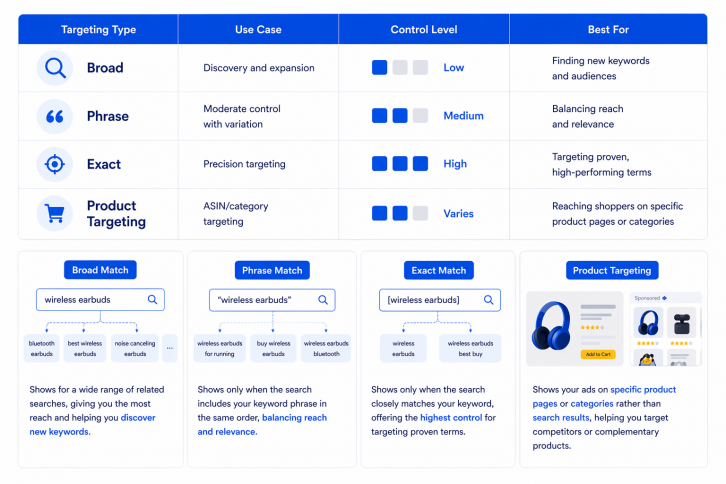
Each type works a bit differently, and using a mix of them helps you find new customers, stay in control of your targeting, and improve results over time.
- Broad match gives Amazon the most flexibility, allowing your ad to show for a wide range of related searches, making it useful for discovering new keywords but with less control.
- Phrase match is more restrictive, showing your ad only when the search includes your keyword phrase in the same order, which provides a balance between reach and relevance.
- Exact match offers the highest level of control, triggering your ad only when the search closely matches your keyword, making it ideal for targeting proven, high-performing terms.
- Product targeting works differently by showing your ads on specific product pages or categories rather than search results, allowing you to target competitors or complementary products.
How to Use Negative Keywords to Reduce Ad Spend
Negative keywords are terms you tell Amazon not to show your ads for, helping you avoid paying for clicks that are unlikely to convert.
To access them:
Ads Console → Campaigns → Select Campaign → Negative targeting
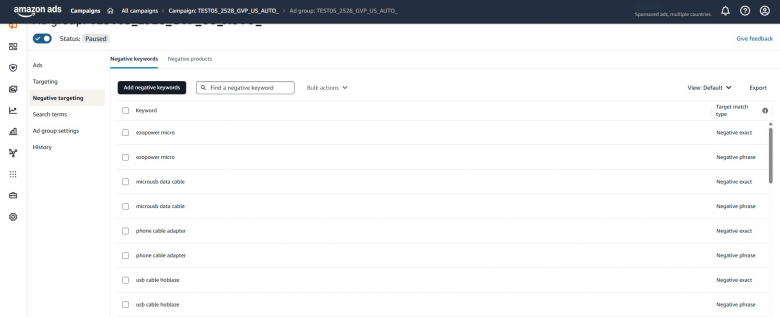
They are especially useful in automatic campaigns, where Amazon may show your ads for a wide range of search queries.
To identify negative keywords, look for terms that:
- Have high spend but no sales ($30-$50 or 20+ clicks without conversion)
- Are clearly irrelevant
- Have significantly higher ACoS than your average
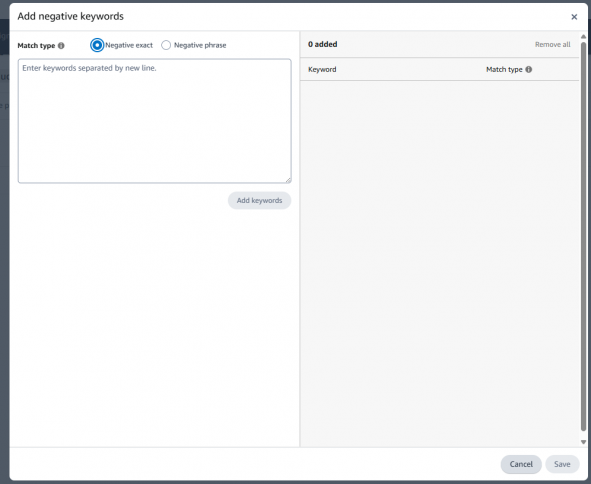
Once identified, add them as:
- Negative exact
- Negative phrase
However, avoid overusing negative keywords. Some terms may still provide value for visibility or long-term optimization.
How to Use Search Terms to Optimize Your Product Listing
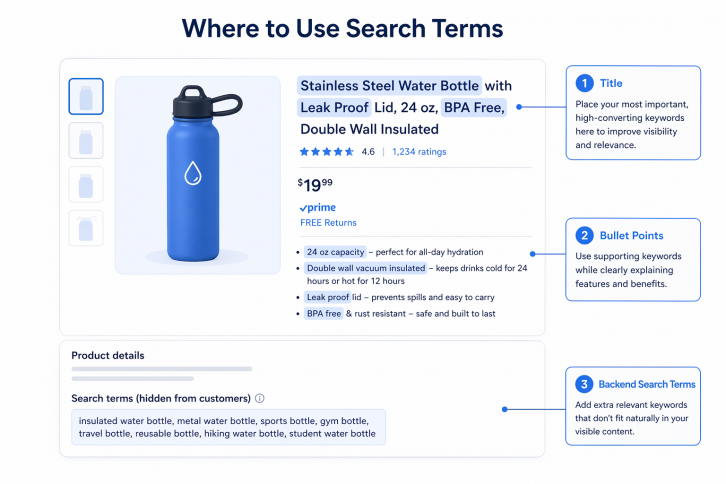
Once you’ve identified your best search terms, the next step is knowing exactly where to put them for maximum impact.
- Title → Place your most important, high-converting keywords here to improve visibility and relevance
- Bullet Points → Use supporting keywords while clearly explaining features and benefits
- Backend Search Terms → Add extra relevant keywords that don’t fit naturally in your visible content
Simplify Search Term Optimization with BQool’s Auto Harvesting
BQool’s Auto Harvesting automatically identifies high-performing keywords and eliminates wasted ad spend. Instead of manually digging through reports, it helps you add the right high-performing keywords to your campaigns automatically,24/7, allowing you to focus on scaling efficiently.
If you’d like to learn more, this article will show you how to use Amazon search term reports to uncover real customer queries and turn them into high-performing keyword opportunities.