How to Find Negative Keywords for Amazon Ads
Despite how they sound, negative keywords arenβt all that bad. In fact, are one of the most effective ways to improve your Amazon Ads performance. By preventing your ads from appearing for irrelevant searches, they help reduce wasted ad spend, improve campaign efficiency, and focus your budget on shoppers who are more likely to buy.
In this guide, you’ll learn how to find negative keywords, when to use them, and how to add them to your Amazon Ads campaigns.
Overview
- What Are Negative Keywords and Why Do Amazon Sellers Use Them?
- Targeting Keywords vs. Negative Keywords
- What are the benefits of using negative keywords?
- Negative Exact vs. Negative Phrase
- Where to Find Negative Keywords in Amazon Ads
- How to Identify Negative Keywords Using Search Term Data
- How to Add Negative Keywords in Amazon Ads (Step-by-Step)
- Advanced Ways to Use Negative Keywords
- Common Negative Keyword Mistakes
- Using AI to Simplify Amazon PPC Management
- FAQ
Quick Answer
The best way to find negative keywords is by reviewing Amazon’s Search Term Report. Look for search terms that get clicks and spend but do not generate sales, then add these terms as negative keywords to reduce wasted ad spend.
What Are Negative Keywords and Why Do Amazon Sellers Use Them?
Think of negative keywords as a “do not show” list. They tell Amazon not to display your ads for specific search terms. While regular keywords help shoppers find your products, negative keywords help keep your ads away from searches that are not a good match.
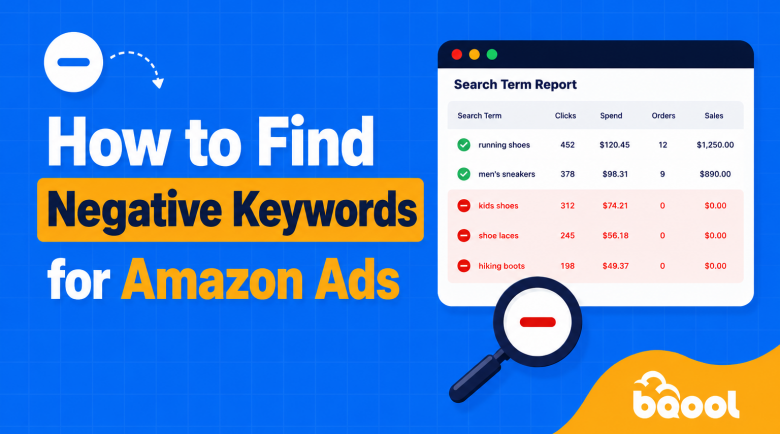
For example, if you sell running shoes for adults, you may add terms like “kids running shoes” or “hiking boots” as negative keywords. This helps ensure your ads reach shoppers looking for the products you actually sell, which helps reduce wasted ad spend and focuses your budget on converting shoppers.
Targeting Keywords vs. Negative Keywords
What are the benefits of using negative keywords?
Adding negative keywords helps sellers reduce wasting your ad budgets by reducing the number of clicks that are unlikely to lead to sales. Therefore, negative keywords help sellers reach more qualified shoppers, improve conversion rates, and lower your overall ACoS (Advertising Cost of Spend). Over time, this also creates cleaner campaign data, making it easier to identify what is working and optimize future advertising decisions.
Negative Exact vs. Negative Phrase
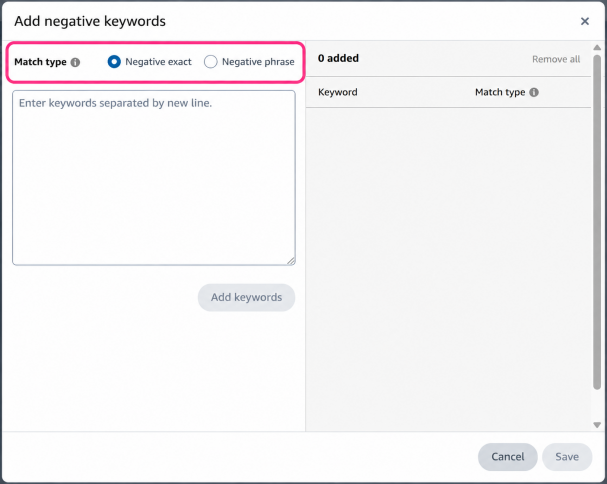
Amazon offers two types of negative keywords, and the difference comes down to how much you want to block.
Negative Exact
Use Negative Exact when you only want to block one specific search term.
Example: dog bed small dogs
Your ad won’t show when someone searches for “dog bed small dogs”, or similar variations.
Negative Phrase
Use Negative Phrase when you want to block any search containing a specific phrase.
Example: small dogs
Your ad won’t show for searches like:
- dog bed for small dogs
- toys for small dogs
- best food for small dogs
As long as the words “small dogs” appear together in the search, your ad won’t be shown.
Use Negative Exact when you only want to block one search query. Use Negative Phrase when you want to block an entire group of related searches.
Where to Find Negative Keywords in Amazon Ads
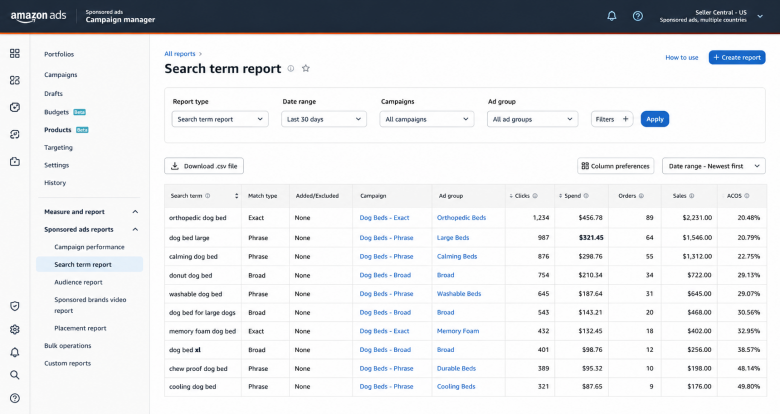
The best place to find negative keywords is Amazon’s Search Term Report. This report shows the actual words shoppers typed into Amazon before clicking on your ads.
You can find the Search Term Report by navigating to: Amazon Ads Console > Campaign Manager > Measurement & Reporting > Search Term Report.
What are some other places to discover negative keywords?
Negative keyword opportunities can also be found in:
- Auto Campaigns: Auto campaigns often uncover irrelevant searches because Amazon controls targeting.
- Broad Match Campaigns: Broad match campaigns can generate highly varied search queries, making them excellent sources for negative keyword discovery.
How to Identify Negative Keywords Using Search Term Data
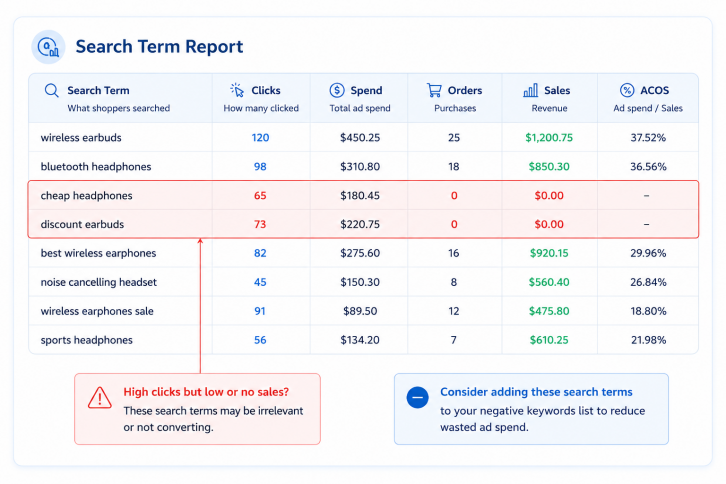
When reviewing search terms, pay attention to these key metrics:
- Clicks: How many people clicked on your ad
- Spend: How much money you spent on those clicks
- Orders: How many purchases were made
- Sales: How much revenue the search term generated
- ACOS: How much you spent on ads compared to sales
As a general rule, review your Search Term Report weekly for high-volume accounts, every two weeks for mid-sized accounts, and monthly for smaller accounts to catch poor-performing search terms before they waste your ad budget.
A simple process is:
- Download the Search Term Report from Amazon Ads.
- Sort the report by Spend or Clicks to find the search terms receiving the most traffic.
- Look for search terms that have generated multiple clicks but few or no sales.
- Review key metrics such as Orders, Sales, and ACOS to understand how each search term is performing.
- Ask yourself whether the search term matches what your product actually offers and whether the shopper is likely to buy your product.
- Decide whether to:
- Keep testing the search term if there is not enough data yet.
- Move it into another campaign if it shows potential.
- Add it as a negative keyword if it consistently spends money without generating sales.
Learn how to analyze search term performance in our Search Term Report Optimization Guide.
How to Add Negative Keywords in Amazon Ads (Step-by-Step)
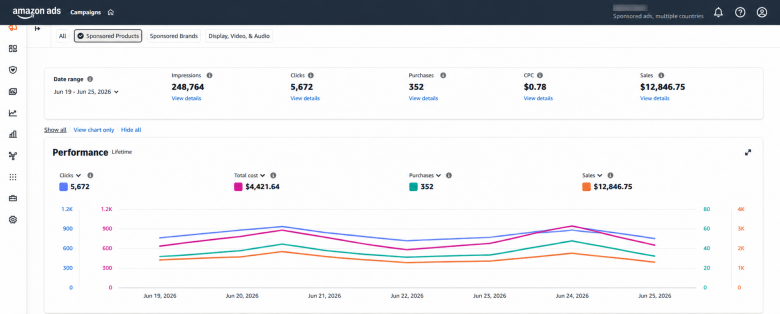
Adding negative keywords is a straightforward process inside Amazon Campaign Manager.
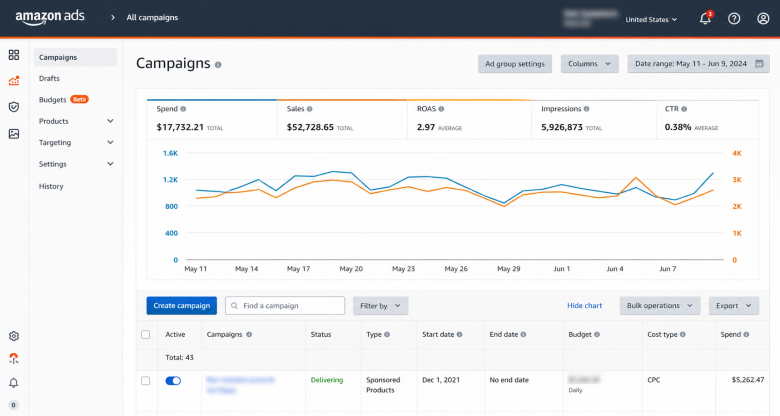
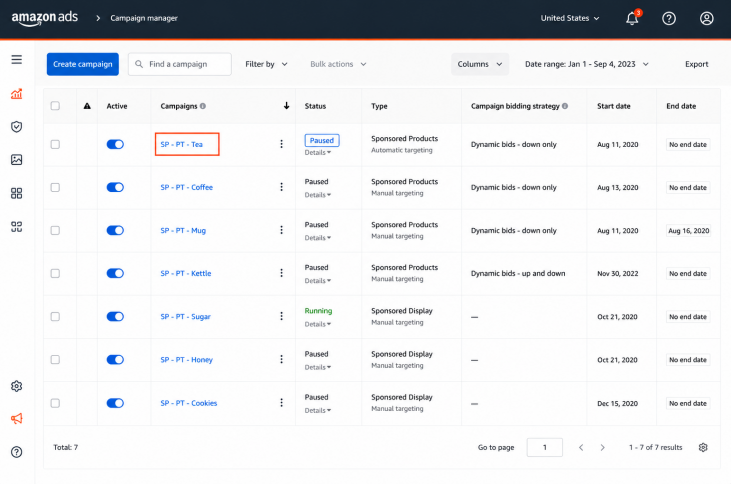
Step 1: Navigate to Campaign Manager
Open Seller Central and access Campaign Manager.
Step 2: Select the Campaign
Choose the campaign you want to modify.
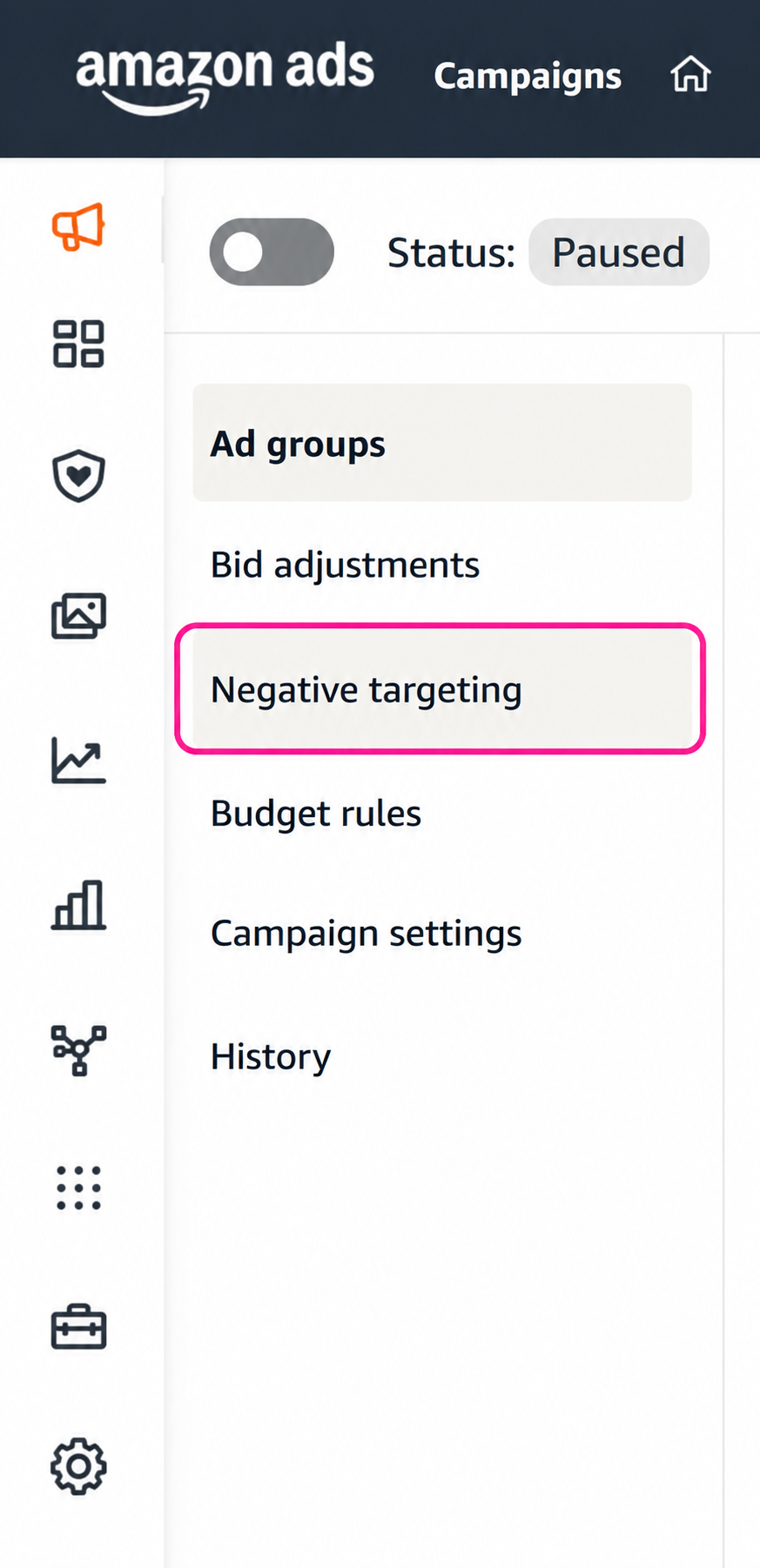
Step 3: Access the Negative Keywords Section
Once you have selected a campaign, locate the negative keyword tab on the left-hand side.
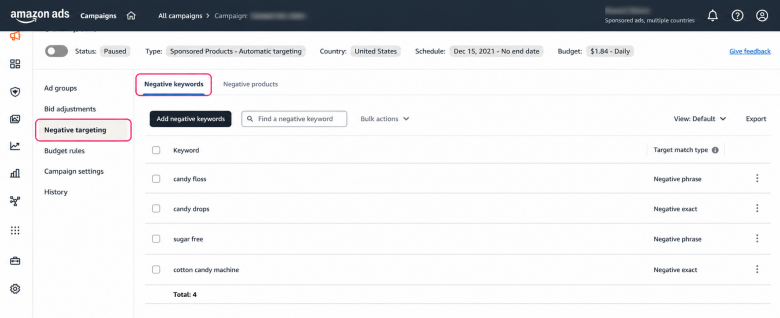
Step 4: Add Negative Keywords
Use Negative Exact when you want to block a very specific search query, which are best for search terms you are sure that are not profitable.
Use Negative Phrase when you want to block a broader category of searches, which are best for product categories you do not sell in or for customers who are outside your target market.
Advanced Ways to Use Negative Keywords
Stop Campaigns From Competing With Each Other
Sometimes multiple campaigns end up targeting the same search term. When that happens, it becomes harder to understand which campaign is actually driving results, and you may end up wasting ad spend.
Use Negative Keywords to Organize Your Campaigns
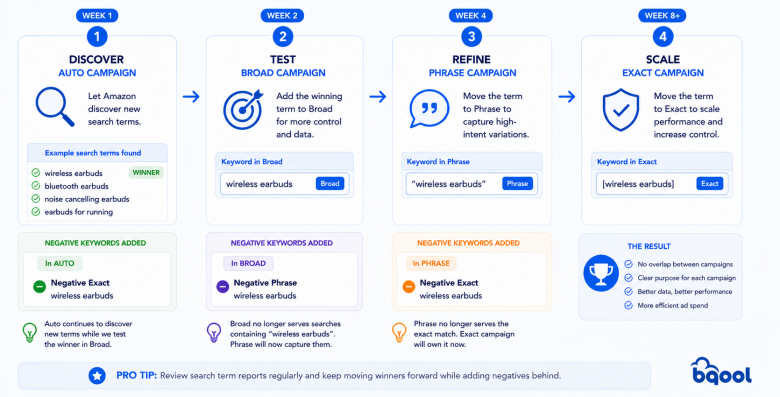
If the same search term can trigger multiple campaigns, it becomes difficult to know which campaign is actually driving results. A common strategy is to gradually move high-performing search terms through different campaign types:
Auto > Broad > Phrase > Exact
For example, you might first discover “wireless earbuds” in an Auto campaign. Once it generates consistent sales, add it as a keyword in a Broad campaign and add it as a Negative Exact in the Auto campaign. This allows the Broad campaign to take ownership of that search term while the Auto campaign continues discovering new opportunities.
As the keyword continues to perform well, move it into a Phrase campaign and add it as a Negative Phrase in the Broad campaign. Finally, when you’re confident it’s a proven winner, move it into an Exact campaign and add it as a Negative Exact in the Phrase campaign.
By promoting keywords step by step and adding negative keywords to the previous campaign, you prevent campaign overlap, keep performance data clean, and gain greater control over your Amazon PPC strategy.
To learn more about keyword match types, check out this article.
Common Negative Keyword Mistakes
Adding Negative Keywords Too Soon
Don’t block a search term after only a few clicks or because it hasn’t generated sales yet. Give it enough time to collect data before deciding whether to exclude it.
Overusing Negative Keywords Too Aggressively
Whilst using negative keywords is helpful, overusing them can be detrimental to your ad campaigns. Make sure you understand what it will block before adding it.
Adding Negative Keywords Without Data
Every negative keyword should have a clear reason. Focus on search terms that are irrelevant or consistently spend money without generating sales, not simply on adding more negative keywords.
Using AI to Simplify Amazon PPC Management
As Amazon PPC accounts grow, manually managing search terms, bids, and budgets becomes increasingly time-consuming. AI can help automate many of the day-to-day PPC optimization tasks.
For example, BQool AI Advertising uses AI-powered bidding, automated keyword harvesting, and budget automation to help sellers react to performance changes faster and spend less time managing campaigns manually. This allows sellers to focus more on strategy while maintaining greater control over advertising performance.
Learn more about how Amazon bidding strategies and AI work together in our Amazon Bidding Strategy Guide.
FAQ
Where can I find a negative keyword list on Amazon Ads Console?
The best source is your Amazon Search Term Report, which shows the actual search terms shoppers used before clicking your ads. Look for irrelevant or consistently unprofitable searches and add them as negative keywords based on your own campaign data.
What are negative keywords in Amazon Ads?
Negative keywords are search terms that tell Amazon not to show your ads for certain searches. They help filter out irrelevant traffic, reduce wasted ad spend, and ensure your budget is spent reaching shoppers who are more likely to buy your products.
How do I do a negative search on Amazon?
To add negative keywords, open Amazon Ads Console > Campaign Manager, select the campaign you want to edit, navigate to the Negative Keywords section, and add either Negative Exact or Negative Phrase keywords based on the searches you want to exclude.

Despite how they sound, negative keywords arenβt all that bad. In fact, are one of the most effective ways to improve your Amazon Ads performance. By preventing your ads from appearing for irrelevant searches, they help reduce wasted ad spend, improve campaign efficiency, and focus your budget on shoppers who are more likely to buy.
In this guide, you’ll learn how to find negative keywords, when to use them, and how to add them to your Amazon Ads campaigns.
Overview
- What Are Negative Keywords and Why Do Amazon Sellers Use Them?
- Targeting Keywords vs. Negative Keywords
- What are the benefits of using negative keywords?
- Negative Exact vs. Negative Phrase
- Where to Find Negative Keywords in Amazon Ads
- How to Identify Negative Keywords Using Search Term Data
- How to Add Negative Keywords in Amazon Ads (Step-by-Step)
- Advanced Ways to Use Negative Keywords
- Common Negative Keyword Mistakes
- Using AI to Simplify Amazon PPC Management
- FAQ
Quick Answer
The best way to find negative keywords is by reviewing Amazon’s Search Term Report. Look for search terms that get clicks and spend but do not generate sales, then add these terms as negative keywords to reduce wasted ad spend.
What Are Negative Keywords and Why Do Amazon Sellers Use Them?
Think of negative keywords as a “do not show” list. They tell Amazon not to display your ads for specific search terms. While regular keywords help shoppers find your products, negative keywords help keep your ads away from searches that are not a good match.
For example, if you sell running shoes for adults, you may add terms like “kids running shoes” or “hiking boots” as negative keywords. This helps ensure your ads reach shoppers looking for the products you actually sell, which helps reduce wasted ad spend and focuses your budget on converting shoppers.
Targeting Keywords vs. Negative Keywords
What are the benefits of using negative keywords?
Adding negative keywords helps sellers reduce wasting your ad budgets by reducing the number of clicks that are unlikely to lead to sales. Therefore, negative keywords help sellers reach more qualified shoppers, improve conversion rates, and lower your overall ACoS (Advertising Cost of Spend). Over time, this also creates cleaner campaign data, making it easier to identify what is working and optimize future advertising decisions.
Negative Exact vs. Negative Phrase
Amazon offers two types of negative keywords, and the difference comes down to how much you want to block.

Negative Exact
Use Negative Exact when you only want to block one specific search term.
Example: dog bed small dogs
Your ad won’t show when someone searches for “dog bed small dogs”, or similar variations.
Negative Phrase
Use Negative Phrase when you want to block any search containing a specific phrase.
Example: small dogs
Your ad won’t show for searches like:
- dog bed for small dogs
- toys for small dogs
- best food for small dogs
As long as the words “small dogs” appear together in the search, your ad won’t be shown.
Use Negative Exact when you only want to block one search query. Use Negative Phrase when you want to block an entire group of related searches.
Where to Find Negative Keywords in Amazon Ads

The best place to find negative keywords is Amazon’s Search Term Report. This report shows the actual words shoppers typed into Amazon before clicking on your ads.
You can find the Search Term Report by navigating to: Amazon Ads Console > Campaign Manager > Measurement & Reporting > Search Term Report.
What are some other places to discover negative keywords?
Negative keyword opportunities can also be found in:
- Auto Campaigns: Auto campaigns often uncover irrelevant searches because Amazon controls targeting.
- Broad Match Campaigns: Broad match campaigns can generate highly varied search queries, making them excellent sources for negative keyword discovery.
How to Identify Negative Keywords Using Search Term Data
When reviewing search terms, pay attention to these key metrics:
- Clicks: How many people clicked on your ad
- Spend: How much money you spent on those clicks
- Orders: How many purchases were made
- Sales: How much revenue the search term generated
- ACOS: How much you spent on ads compared to sales
As a general rule, review your Search Term Report weekly for high-volume accounts, every two weeks for mid-sized accounts, and monthly for smaller accounts to catch poor-performing search terms before they waste your ad budget.
A simple process is:
- Download the Search Term Report from Amazon Ads.
- Sort the report by Spend or Clicks to find the search terms receiving the most traffic.
- Look for search terms that have generated multiple clicks but few or no sales.
- Review key metrics such as Orders, Sales, and ACOS to understand how each search term is performing.
- Ask yourself whether the search term matches what your product actually offers and whether the shopper is likely to buy your product.
- Decide whether to:
- Keep testing the search term if there is not enough data yet.
- Move it into another campaign if it shows potential.
- Add it as a negative keyword if it consistently spends money without generating sales.

Learn how to analyze search term performance in our Search Term Report Optimization Guide.
How to Add Negative Keywords in Amazon Ads (Step-by-Step)

Adding negative keywords is a straightforward process inside Amazon Campaign Manager.
Step 1: Navigate to Campaign Manager
Open Seller Central and access Campaign Manager.

Step 2: Select the Campaign
Choose the campaign you want to modify.

Step 3: Access the Negative Keywords Section
Once you have selected a campaign, locate the negative keyword tab on the left-hand side.

Step 4: Add Negative Keywords
Use Negative Exact when you want to block a very specific search query, which are best for search terms you are sure that are not profitable.
Use Negative Phrase when you want to block a broader category of searches, which are best for product categories you do not sell in or for customers who are outside your target market.

Advanced Ways to Use Negative Keywords
Stop Campaigns From Competing With Each Other
Sometimes multiple campaigns end up targeting the same search term. When that happens, it becomes harder to understand which campaign is actually driving results, and you may end up wasting ad spend.
Use Negative Keywords to Organize Your Campaigns

If the same search term can trigger multiple campaigns, it becomes difficult to know which campaign is actually driving results. A common strategy is to gradually move high-performing search terms through different campaign types:
Auto > Broad > Phrase > Exact
For example, you might first discover “wireless earbuds” in an Auto campaign. Once it generates consistent sales, add it as a keyword in a Broad campaign and add it as a Negative Exact in the Auto campaign. This allows the Broad campaign to take ownership of that search term while the Auto campaign continues discovering new opportunities.
As the keyword continues to perform well, move it into a Phrase campaign and add it as a Negative Phrase in the Broad campaign. Finally, when you’re confident it’s a proven winner, move it into an Exact campaign and add it as a Negative Exact in the Phrase campaign.
By promoting keywords step by step and adding negative keywords to the previous campaign, you prevent campaign overlap, keep performance data clean, and gain greater control over your Amazon PPC strategy.
To learn more about keyword match types, check out this article.
Common Negative Keyword Mistakes
Adding Negative Keywords Too Soon
Don’t block a search term after only a few clicks or because it hasn’t generated sales yet. Give it enough time to collect data before deciding whether to exclude it.
Overusing Negative Keywords Too Aggressively
Whilst using negative keywords is helpful, overusing them can be detrimental to your ad campaigns. Make sure you understand what it will block before adding it.
Adding Negative Keywords Without Data
Every negative keyword should have a clear reason. Focus on search terms that are irrelevant or consistently spend money without generating sales, not simply on adding more negative keywords.
Using AI to Simplify Amazon PPC Management
As Amazon PPC accounts grow, manually managing search terms, bids, and budgets becomes increasingly time-consuming. AI can help automate many of the day-to-day PPC optimization tasks.
For example, BQool AI Advertising uses AI-powered bidding, automated keyword harvesting, and budget automation to help sellers react to performance changes faster and spend less time managing campaigns manually. This allows sellers to focus more on strategy while maintaining greater control over advertising performance.
Learn more about how Amazon bidding strategies and AI work together in our Amazon Bidding Strategy Guide.
FAQ
Where can I find a negative keyword list on Amazon Ads Console?
The best source is your Amazon Search Term Report, which shows the actual search terms shoppers used before clicking your ads. Look for irrelevant or consistently unprofitable searches and add them as negative keywords based on your own campaign data.
What are negative keywords in Amazon Ads?
Negative keywords are search terms that tell Amazon not to show your ads for certain searches. They help filter out irrelevant traffic, reduce wasted ad spend, and ensure your budget is spent reaching shoppers who are more likely to buy your products.
How do I do a negative search on Amazon?
To add negative keywords, open Amazon Ads Console > Campaign Manager, select the campaign you want to edit, navigate to the Negative Keywords section, and add either Negative Exact or Negative Phrase keywords based on the searches you want to exclude.